
Postminion blog
Schedule social media posts from ChatGPT with Postminion
Postminion is now available in ChatGPT. Connect it, attach your photos, choose your accounts and schedule a post without opening the dashboard.
Our ancestors opened a scheduling dashboard. You can just ask ChatGPT.
Postminion is now available in ChatGPT. You can attach your images, mention Postminion, and ask it to draft, schedule or publish to your connected social accounts. You choose the permissions.
I built Postminion so you could upload once and send a post to several platforms. The dashboard already does that. This gives you another way to use it: finish the post in the conversation where you wrote it.
Content lazymaxxing. Specifically, the admin part.
An idea hits while you’re on a walk
You take a photo. A caption comes to mind. You open ChatGPT and dictate the thought before you forget it.
Once Postminion is connected, you can attach the photo, select the Postminion plugin, and ask:
Schedule this photo to my LinkedIn, Threads and Instagram tomorrow at 9am New York time. Use this caption: “Your next idea probably needs a walk, not another browser tab.”
The useful details are the accounts, the caption, the date, the time and the time zone. If you have several accounts on one platform, name the ones you mean.
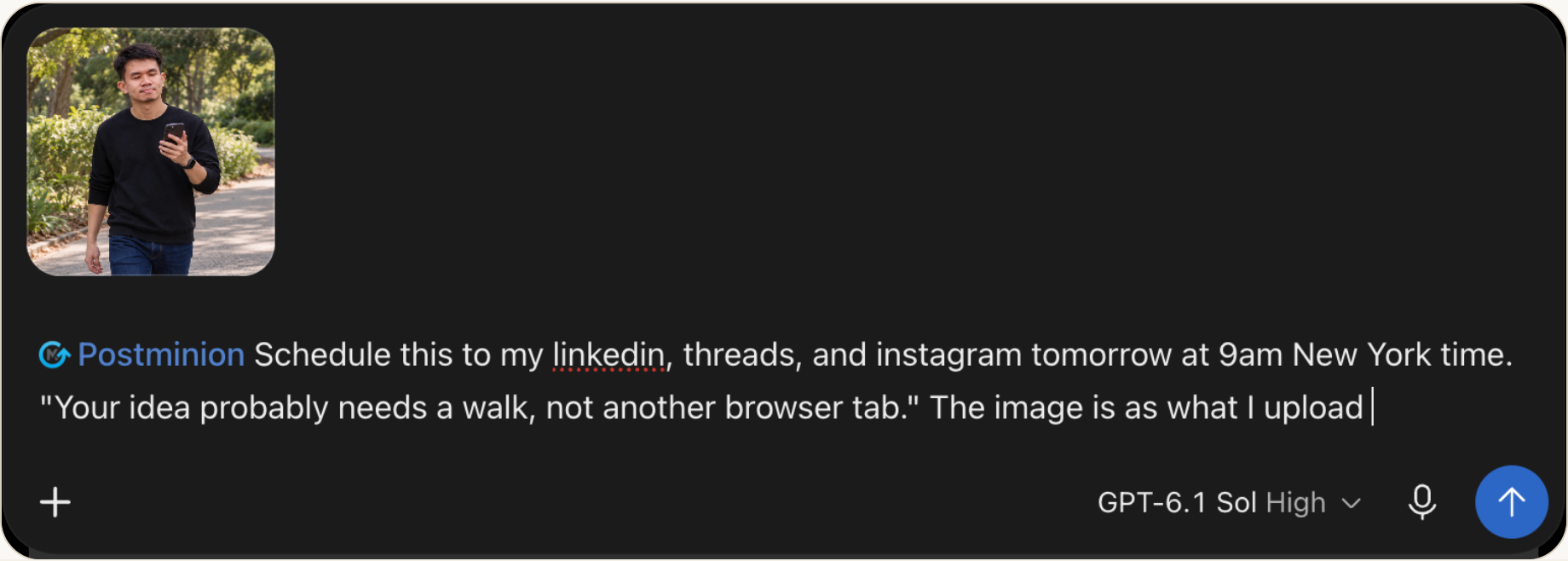
Then get back to the walk. Check that the post is scheduled for the right accounts and time before putting the phone away.
How to connect Postminion to ChatGPT
1. Connect your social accounts in Postminion
Sign in to Postminion and connect the social accounts you want to use. If you use several workspaces, choose the one for this brand or project.
For example, you could connect your Instagram Business or Creator account, your Threads account, and your personal LinkedIn profile.
This is the initial setup. Mentioning Postminion in ChatGPT does not connect a social account you have never authorized.
2. Add Postminion in ChatGPT
Open Postminion’s plugin page in ChatGPT, or search for Postminion in the Plugins directory. Add it and follow the prompts to connect your Postminion account.
OpenAI’s plugin guide explains installation and connections. Availability depends on your account and workspace settings.
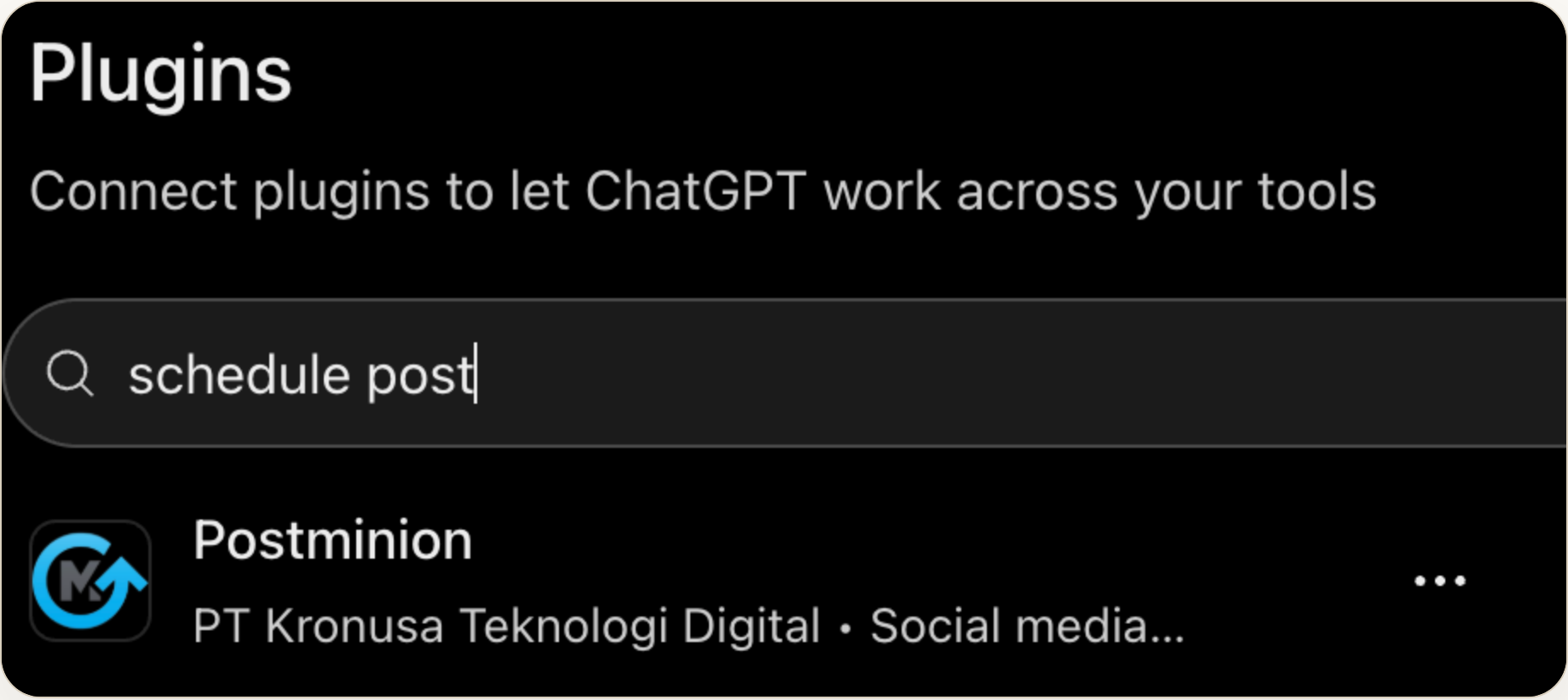
3. Choose the workspace and permissions
Postminion asks which workspace you want to authorize and what the agent may do there.
You can allow it to save drafts without allowing scheduling or immediate publishing. If you want it to schedule posts, grant scheduling access. Publishing immediately is a separate permission. Attaching media also needs media access.
The permission screen has individual checkboxes. Choose the access that matches how you want to work.
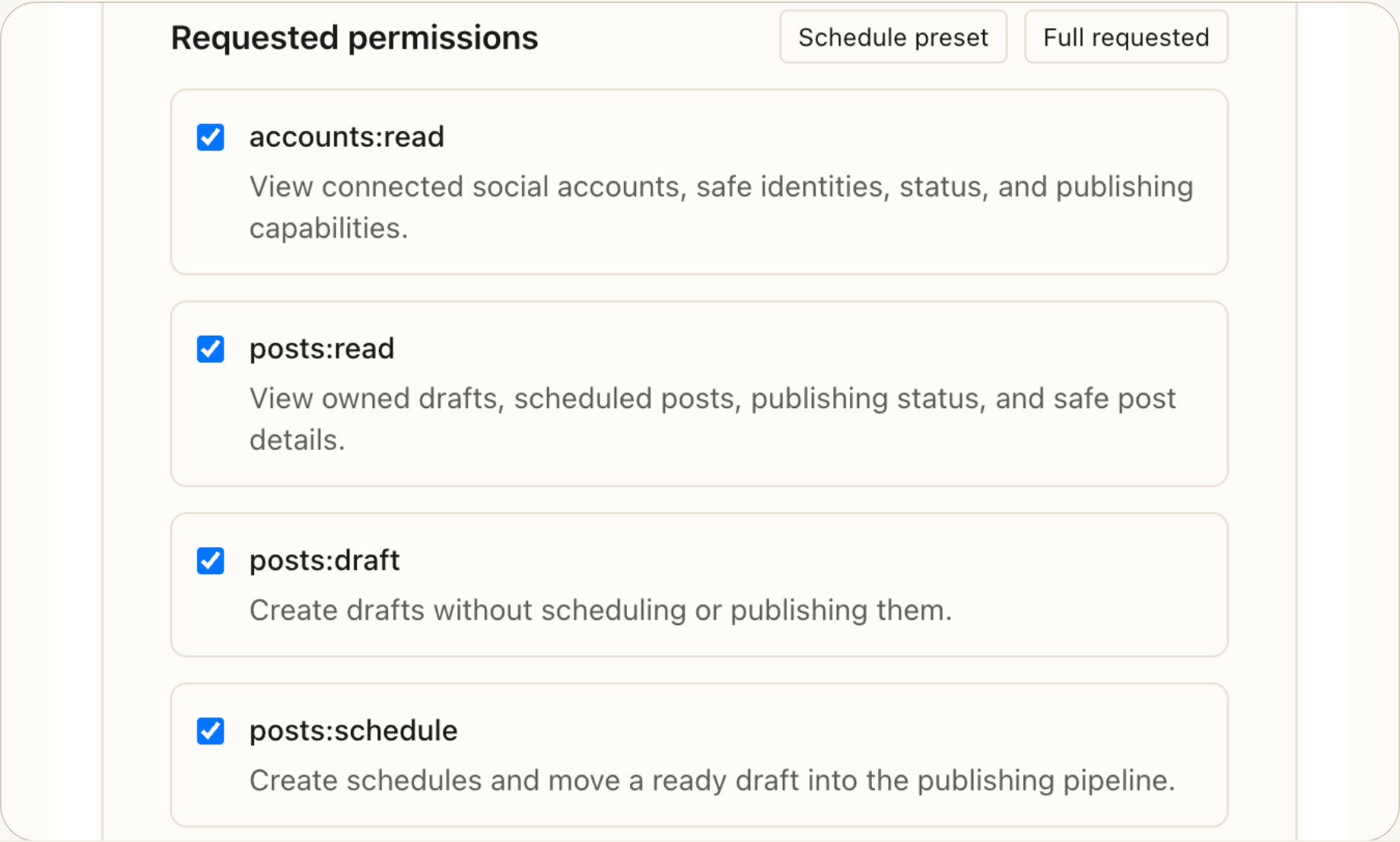
Access covers the current and future social accounts in that workspace. You can revoke it from the AI Agents page in Postminion.
4. Mention Postminion and give it the post
Start a chat, type @, and select Postminion from the plugin menu. Attach your images and describe what you want. OpenAI documents this selection flow in its guide to using plugins.
You can ask ChatGPT to help write the caption first. Postminion handles saving and posting it; Postminion itself does not generate the caption or images.
Start with a draft, or schedule it
If you want to review the post first:
Save these six images as a draft for my Instagram account in Postminion. Use the caption we just wrote. Don’t schedule or publish it.
If the content is ready:
Schedule the attached images to my LinkedIn and Threads tomorrow at 9am New York time. Use the longer caption for LinkedIn and the short version for Threads.
Postminion supports a different caption per account. That means the LinkedIn version can explain the launch while the Threads version gets to the point.
For this launch, the same six-slide carousel went to Instagram, Facebook, LinkedIn, Threads and TikTok with different captions. All five accounts reported successful publication.
Scheduled does not mean published
A scheduled post is waiting for its chosen time. A request accepted for immediate publishing is still waiting for the social platforms to finish processing it.
Ask ChatGPT to check:
Did that post publish? Show me the result for each account.
Each account gets its own result. If one fails, check that result rather than assuming the whole post went out.
What still needs your input
The usual platform rules apply. Instagram publishing needs a Business or Creator account, Facebook publishing is for Pages, and LinkedIn publishing is for personal profiles. A six-image carousel cannot go to YouTube Shorts, which needs a video.
TikTok asks for visibility and commercial-content disclosure choices for each post. ChatGPT needs your answers before submitting it.
Pinterest is different: an agent can save a Pin as a draft, but you must choose to schedule or publish it in Postminion yourself.
And the plugin is not a design editor. Ask ChatGPT to prepare your content, then supply the finished images or video. The permissions you granted do not make an unsupported format publishable.
More time making the stuff worth posting
If you like seeing the calendar and arranging posts in a dashboard, keep doing that. It is the same Postminion.
If you already write in ChatGPT, you can now finish the scheduling there too.
Add Postminion in ChatGPT. Connect your social accounts in Postminion first, then choose what the agent can do.
New to Postminion? Try it free for 7 days.